The Extra Mile

Friday, 16 January 2015

Thursday, 15 January 2015
Blog task 19 - How to create a soundtrack in garage band
- Click on the guitar icon on your homepage. This is the garage band application.

- Select what kind of track you would like to make from the various icons i.e piano , guitar or looped beat.

- Once you have chosen it , save it.
 #
# - Once saved a grey screen will appear with a list of different beats and instrumental noises to use.

- Once you have pressed the kind of sound you want from the list i.e drum and bass , a list of sounds in that category will appear.

- Drag the loop you have selected and put it on the timeline. You can others into it and keep doing so until you have your perfect sounds. Then go to file , go down to export so that you can correctly save your file and import elsewhere.

Blog Task 18 - How to create titles in motion
Motion is an application that allows you to make titles sequences using templates from the start.
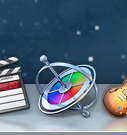
- First select 'Start with template' out of all four options (the 3rd one)

- There will be a range of templates for you to chose from once you've clicked it. Pick one

- You can preview the template sequence you have chosen to see if you want it.

- The screen will appear where you can select the title.

- Finally you can begin to edit your text and colors of the title sequence and play with the position etc. When you are done , on the left hand side you click export , change the format so that you can use your made title sequence further.


Monday, 12 January 2015
Blogging Task 19- How to create soundtracks in Garageband
How to create soundtracks in Garageband.


Blogging Task 18- How to create titles in Motion
How to create titles in Motion
Motion is an application that has software which allows you to create titles using templates or from scratch. (icon above).
 First you select whether you want to start with a template or if you want to start from scratch.
 There are a range of templates you can select from .
You can also view a preview of the sequence you selected.
The screen will appear where you can choose your title.
 Here you can add text and edit the position of it.
Finally you can go up to the left hand side, click export to put your title into the correct format to use it in another piece of software.
Finally you can go up to the left hand side, click export to put your title into the correct format to use it in another piece of software.
Subscribe to:
Posts (Atom)